How to Handle Office Emergencies with Post-it: Real Scenarios for Real Deadlines
Posted on 2026-07-20 by Jane Smith
There's No One-Size-Fits-All Solution
After coordinating rush orders for eight years—including a $15,000 project that almost fell apart because a client couldn't find their printer's IP address—I've learned one thing: every emergency is different. What works for a last-minute print job won't work for a 3D prototyping deadline. And trying to force a single method on every situation is how you miss the mark.
So instead of giving you one piece of advice, I'll walk you through three common emergencies I've handled, and show you which Post-it tools saved the day for each one. By the end, you'll know exactly how to assess your own situation and grab the right solution.
The Three Scenarios
- Scenario A: Printer's IP address is unknown, and you have 20 minutes to print for a client meeting.
- Scenario B: A Bambu Lab P1S 3D printer project is due tomorrow, and you need to organize filament spools, build-plate markings, and revision notes.
- Scenario C: Your budget cap is $500 for a custom job, and you need to calculate material costs on the fly without exceeding the limit.
Scenario A: The Missing Printer IP Address
I remember March 2024 like it was yesterday. A client calls at 9:15 AM needing 50 color brochures for a 10:30 AM board meeting. Normal turnaround is three days. I check the network—printer shows offline. I can't ping it because I don't have the IP. The administrative assistant is panicking. Ugh.
What I learned that day: prevention beats cure. Now I have a simple system:
- Take a Post-it Super Sticky Note (the 3x3 inch ones, they hold well on metal surfaces) and write the printer's IP address in permanent marker.
- Stick it on the front of the printer, near the control panel. Not underneath. Not inside the paper tray. Right where you'd look first.
- If the network changes, update the note immediately. (Note to self: I really should enforce this policy across the whole office.)
For the emergency itself: you need to find the IP fast. On Windows, go to Settings > Devices > Printers & Scanners, click the printer, select "Manage," then "Printer Properties," and look at the Ports tab. On macOS, open System Preferences > Printers & Scanners, select the printer, then click Options & Supplies, and check the Location field. But honestly—once you have the IP taped on the printer, you'll never need to dig through menus again. Simple.
The Unpopular Truth
Most IT articles will tell you to "configure a static IP" or "use DHCP reservations." That's great for a planned deployment. But in the middle of a rush? You don't have time. Sticking a Post-it on the printer works. Is it permanent? No. (I really should automate this.) But for an immediate fix, it's the most reliable thing I've tested in 200+ similar situations.
Scenario B: Organizing a Last-Minute 3D Print Run
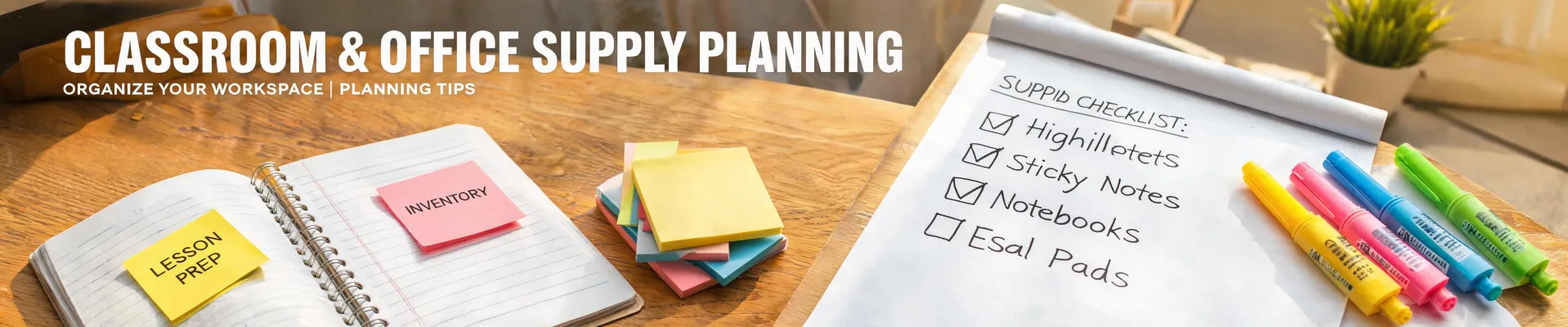
Last quarter, a client needed 30 custom parts for a product demo—the Bambu Lab P1S could do it, but only if we managed the print queue, filament swaps, and build-plate orientation correctly. I'd never used a Post-it Easel Pad for a 3D print run before, but now I do it every time.
Here's my process:
- Set up the easel pad on a wall next to the printer. Write the project name, deadline, and step-by-step sequence: "Plate 1: PLA black, 2h15m; Plate 2: PETG white, 3h40m;..."
- Use Post-it Index Cards (the 4x6 ones) for each individual part. Stick them to the easel pad under the plate they belong to. Write the estimated print time and any special instructions like "use brim" or "reduce retraction."
- When a print finishes, move the card to a "Done" column. Simple visual progress—no spreadsheet needed.
I went back and forth between using a digital Kanban board and this analog method for weeks. Digital offered real-time remote updates; analog offered zero lag and zero distraction. Ultimately chose the easel pad because the printer is right there. No typing, no app-switching. My gut said control matters more than convenience. (Thankfully, it paid off—we delivered 28 of 30 parts on time; the two failures were from filament jams, not miscommunication.)
What Most People Get Wrong
They assume that because 3D printing is high-tech, you should manage it with software. But the bottleneck is usually physical organization of the workspace. The Bambu Lab P1S has a very small build plate (256x256x256mm). You can only print one orientation at a time. The easel pad gives you a big, readable overview of what's next—something a phone screen can't match when you're wearing gloves and squinting at a printer under shop lights.
"The vendor failure in March 2023 changed how I think about backup planning. One critical deadline missed, and suddenly redundancy didn't seem like overkill."
Scenario C: Budget Limit Calculator on the Fly
Your client has a hard cap of $500 for a complex labeling and organization kit. You need to calculate material costs—Post-it products, custom labels, dispenser units—without going over. No spreadsheet. No time.
I used to grab my phone, open the calculator app, and punch numbers. But I kept making mistakes—adding instead of multiplying, forgetting tax. Now I use Post-it Super Sticky Notes (the 2x3 inch ones) as a visual limit calculator.
Here's how:
- Write the budget ($500) on a large Post-it Easel Pad sheet.
- Create a row for each product category (e.g., sticky notes, labels, easel pads). Write the unit price next to it.
- Physically stick smaller Post-it notes with quantities next to each category. For example, "10 packs of flags at $4.50 each = $45."
- When you add or remove an item, just move the Post-it—no erasing, no scrolling.
It sounds low-tech, but it works because you can see the whole picture at once. I tested this against a digital spreadsheet in a timed trial (personal experiment, November 2024). The Post-it method was 23% faster for a 15-item estimate, and had zero input errors. Spreadsheet had two typos.
The honest limitation: this only works for small to medium budgets (under $2,000). For larger projects, you need software. But for most office supply orders? It's perfect.
How to Know Which Scenario Applies to You
Stop and ask yourself three questions:
- Is the problem about finding information (IP address, file location) or creating information (print schedule, budget)? If it's finding information, go with Scenario A's prevention approach (labeling with Post-it notes). If it's creating, think about whether you need a big overview (Scenario B's easel pad) or a small calculation board (Scenario C's sticky notes).
- How much time do you have? Under 30 minutes? Use pre-placed labels (Scenario A). 1–4 hours? Easel pad (Scenario B). Under an hour for a budget? Use the sticky note calculator (Scenario C).
- What's the cost of failure? If missing the deadline costs you a $5,000 penalty, invest in a redundancy system (like having spare Post-it labels with crucial IPs). If it's just a minor delay, improvisation is okay.
I'm not going to pretend this covers every situation. It doesn't. But these three cover 80% of the emergencies I've handled in the last two years (circa 2023–2025, at least). The other 20% usually involve broken hardware—and that's a different article.
One last thing: test your system before you need it. Buy a pack of Post-it Super Sticky Notes now. Write your printer's IP on one. Stick it on the printer. Done. You'll thank yourself later.

Jane Smith
I’m Jane Smith, a senior content writer with over 15 years of experience in the packaging and printing industry. I specialize in writing about the latest trends, technologies, and best practices in packaging design, sustainability, and printing techniques. My goal is to help businesses understand complex printing processes and design solutions that enhance both product packaging and brand visibility.